
Ten Sugobuy screens, account to doorstep
Every click Sugobuy asks for, from a blank account to a box at your door. Every screen below comes from Sugobuy's own tutorial or our captures of its public pages. The leg pages carry the numbers; this page carries the buttons.
The official walkthrough on video
If you prefer to watch first, Sugobuy's channel has a full tutorial and two short pieces on registration and placing an order. The covers are stored here and nothing loads from YouTube until you press play.
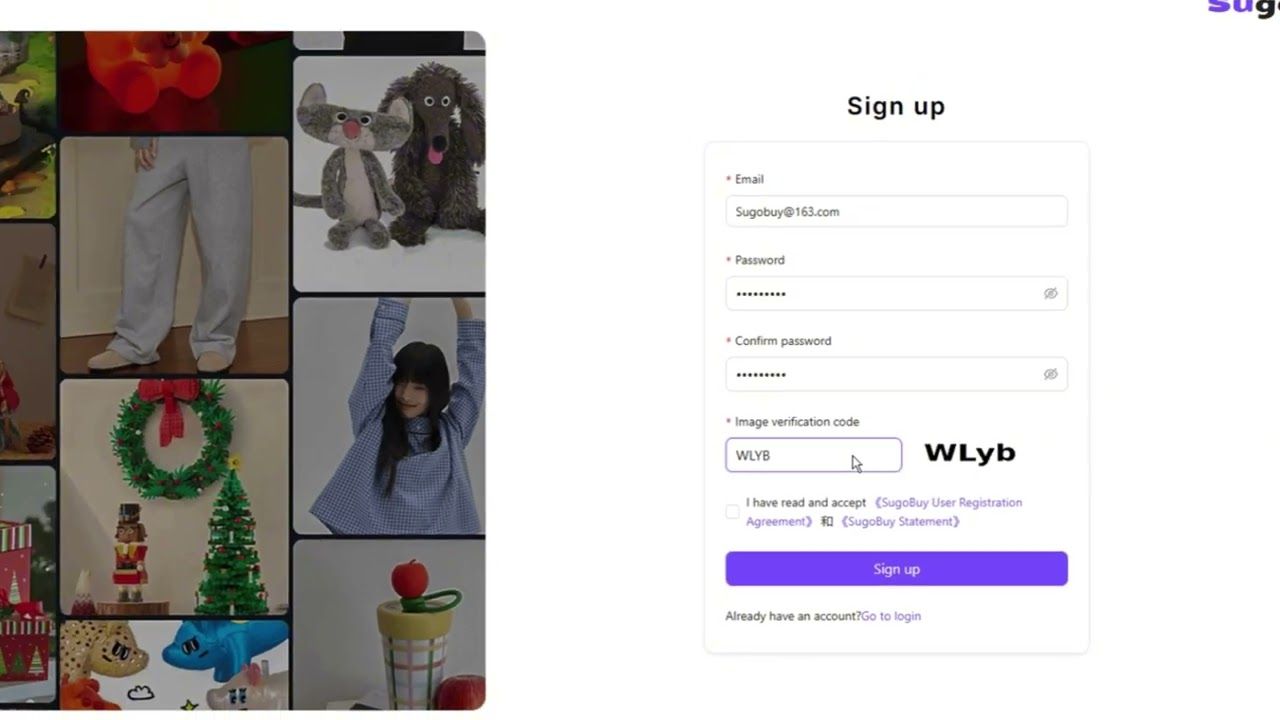
The registration video shows, at about 0:24 to 0:33, what the new-user package actually is: a page of separate shipping coupons with dollar values, not cash. Sugobuy's help centre adds that only one coupon can be used per parcel.
Step 1 · Email, password and a four-letter image code
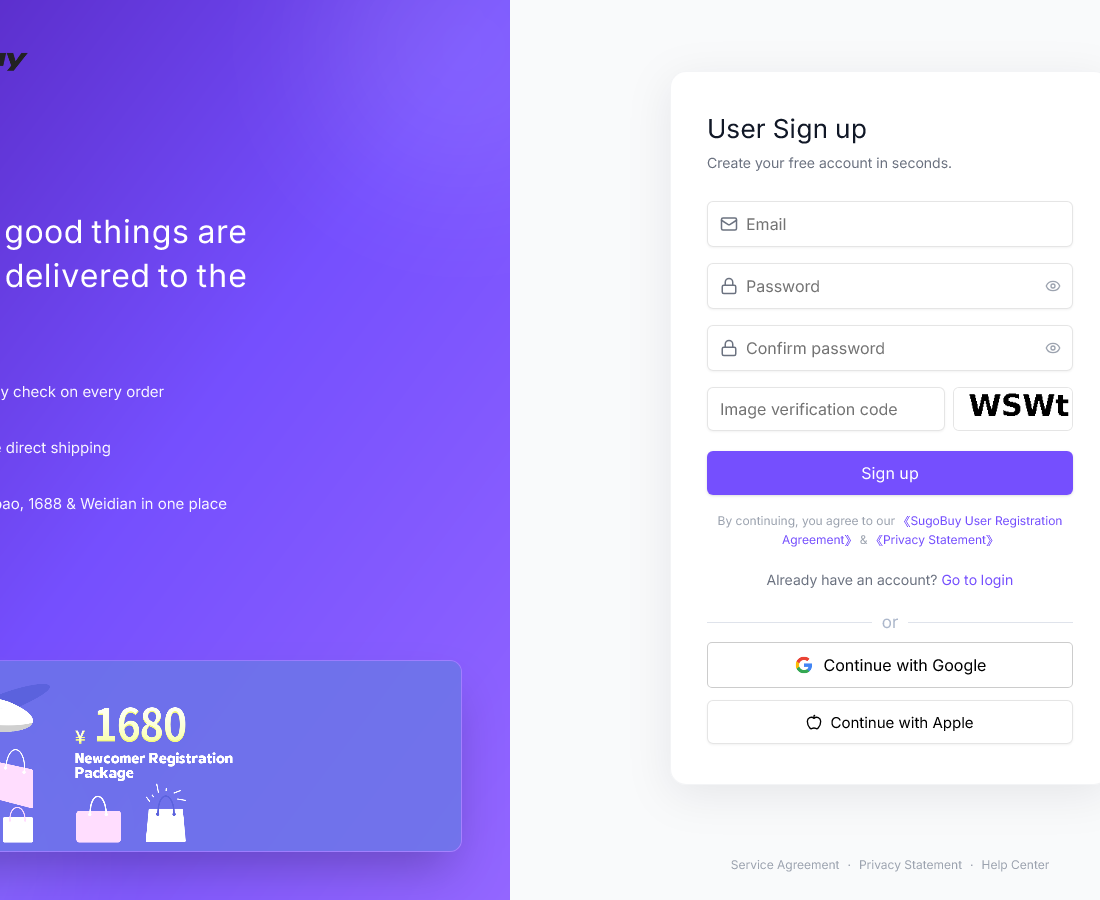
The sign-up page wants an email, the same password entered twice and a four-character picture code, with Google and Apple sign-in as alternatives. Sugobuy then sends an activation link; the account works only after you click it. Use the official sign-up page. A neighbouring address, /en/register, returns an error page, so do not bookmark that one.
Step 2 · Use a Spreadsheet shortlist, then confirm the original listing
A Spreadsheet is most useful here, before an order exists. Browse a category or search for a product type, then reduce the results to two or three realistic candidates. Keep their original marketplace URLs so you can compare the seller's exact options rather than similar cover photographs.
Example: compare two hoodies on equal terms
Choose the intended colour and size on each listing. Note the actual option price, domestic shipping, the seller's size table and any minimum quantity. If your own comfortable hoodie measures 58 cm across the chest, compare that dimension with the seller's garment measurements; an “L” from each seller is not a consistent specification. Keep unresolved details in your own notes for the buying request.
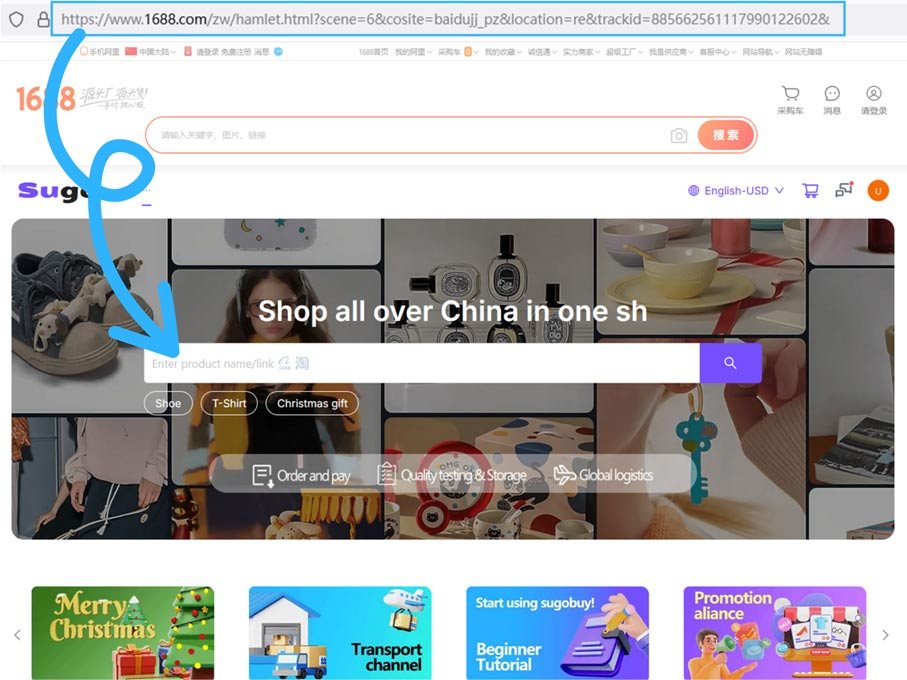
Paste the chosen product link into Sugobuy and confirm that the same item and variant appear. If a link fails, do not use a visually similar result as though it were the same seller. Check the original URL or ask through the DIY/order support route. Only proceed when the product and options match your intended purchase.
Why keep the guide open after choosing?
The inspection stage turns those notes into a focused QC request, and the cost guide keeps freight separate from goods cost. This makes the Spreadsheet useful for comparison and planning, while Sugobuy remains the place where orders, payment, received-item photos and parcel actions actually happen.
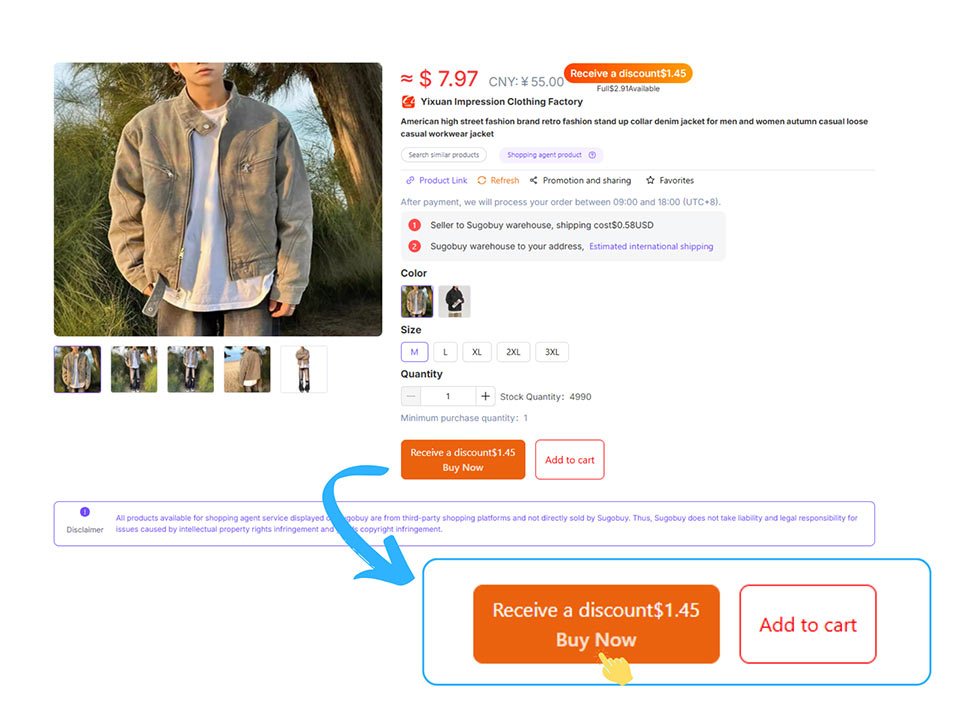
Step 3 · Colour, size, quantity, then Buy Now or the cart
Sugobuy redraws the listing with the seller's colours and sizes as buttons. Pick them, set the quantity, then either Buy Now for a single item or Add to Cart to pay for several at once. On the confirmation screen you enter the destination country, any note for the buyer, and optional paid extras such as detailed photos.
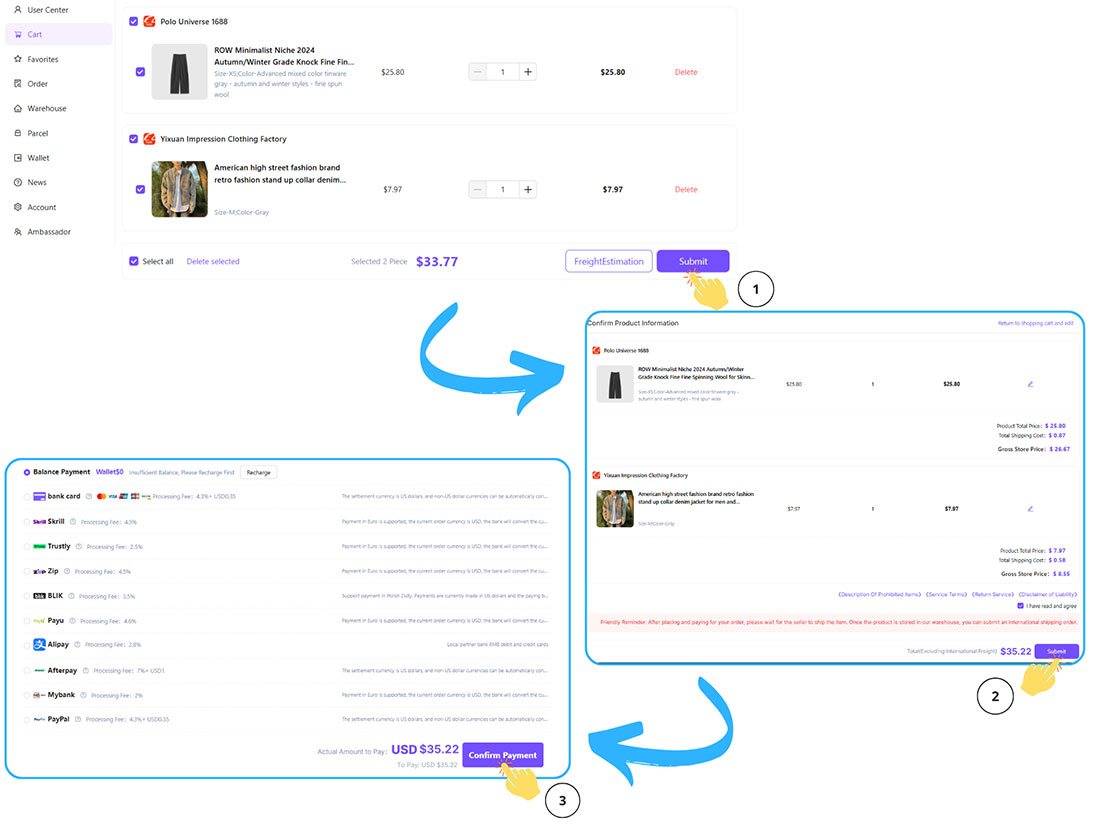
Step 4 · The first payment: item plus seller postage
Payment one buys the item and the seller's courier fee to Xiamen. The payment list shows each method's processing fee next to its name; balance payment shows none. Orders paid by card can sit in a Verifying status. If that status has not moved after 24 hours, check your email, because an unanswered request for documents cancels the order after 72 hours.
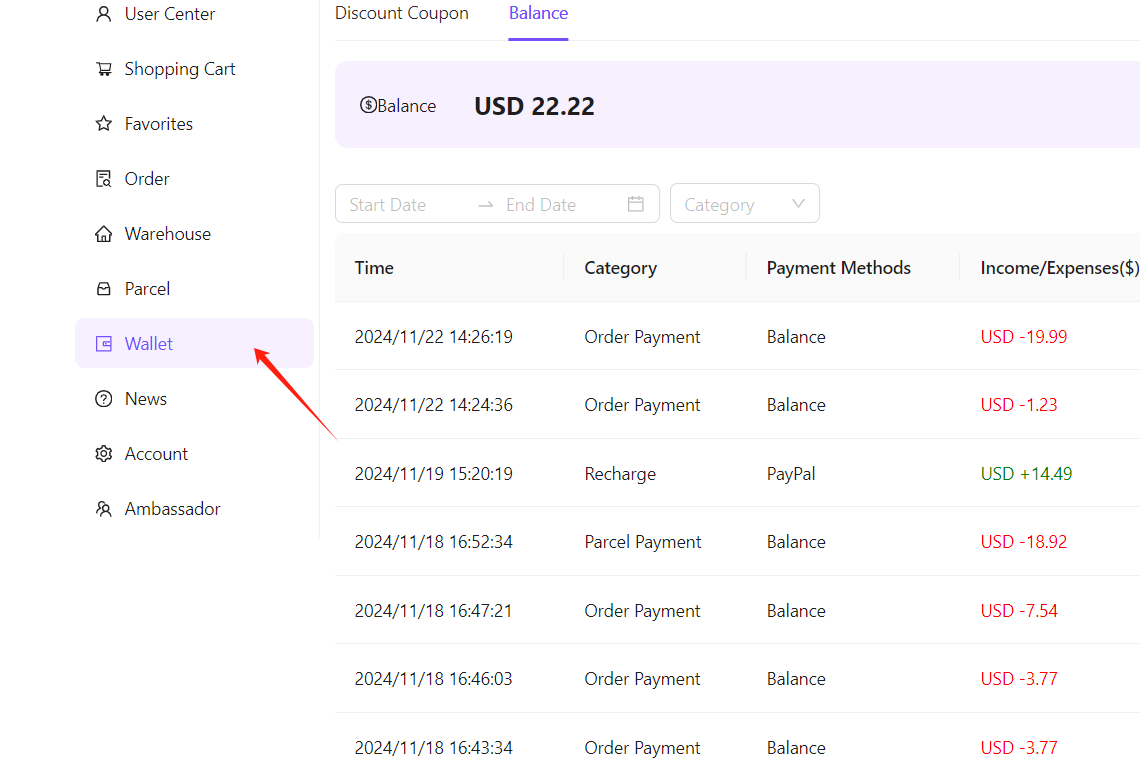
Topping up the balance with an overseas card
To pay from the balance you first recharge it: Wallet, Recharge Now, choose an amount (US$50, 100, 200 or 500 are preset), choose the method and confirm. The help images show the processing fee being charged at the top-up instead.
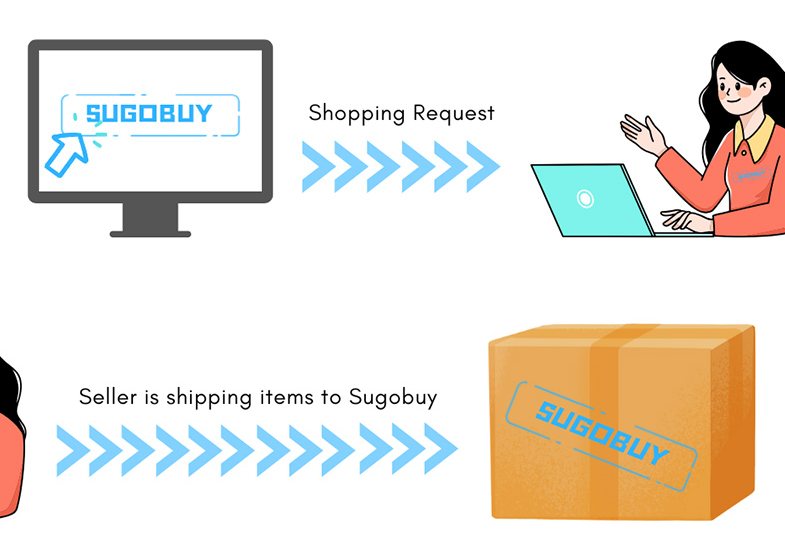
Step 5 · Sugobuy's buyer places the order
Nothing for you to click here unless something goes wrong. A buyer contacts the seller and pays. The Order Inquiry button on the order opens a thread with that buyer, and if a size is out of stock or the price has changed you will see Confirmation pending or Clear Balance on the order instead of Purchased.
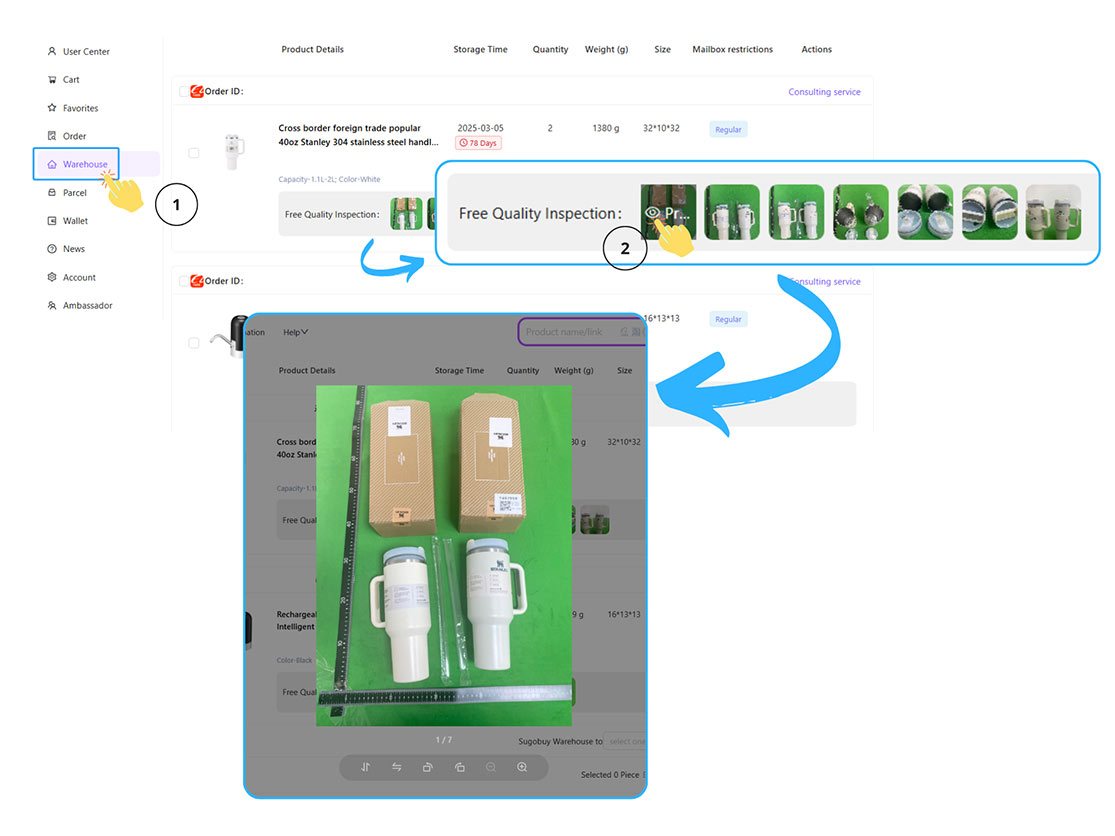
Step 6 · Check the warehouse photos
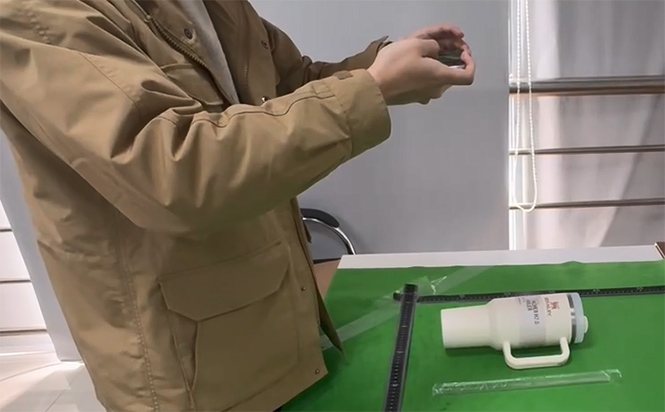
At the warehouse each delivery is signed for, checked and photographed. Open User Center, then Warehouse, and click the thumbnails under Free Quality Inspection. If anything looks off, say so before you build a parcel: the return window is 120 hours from arrival.
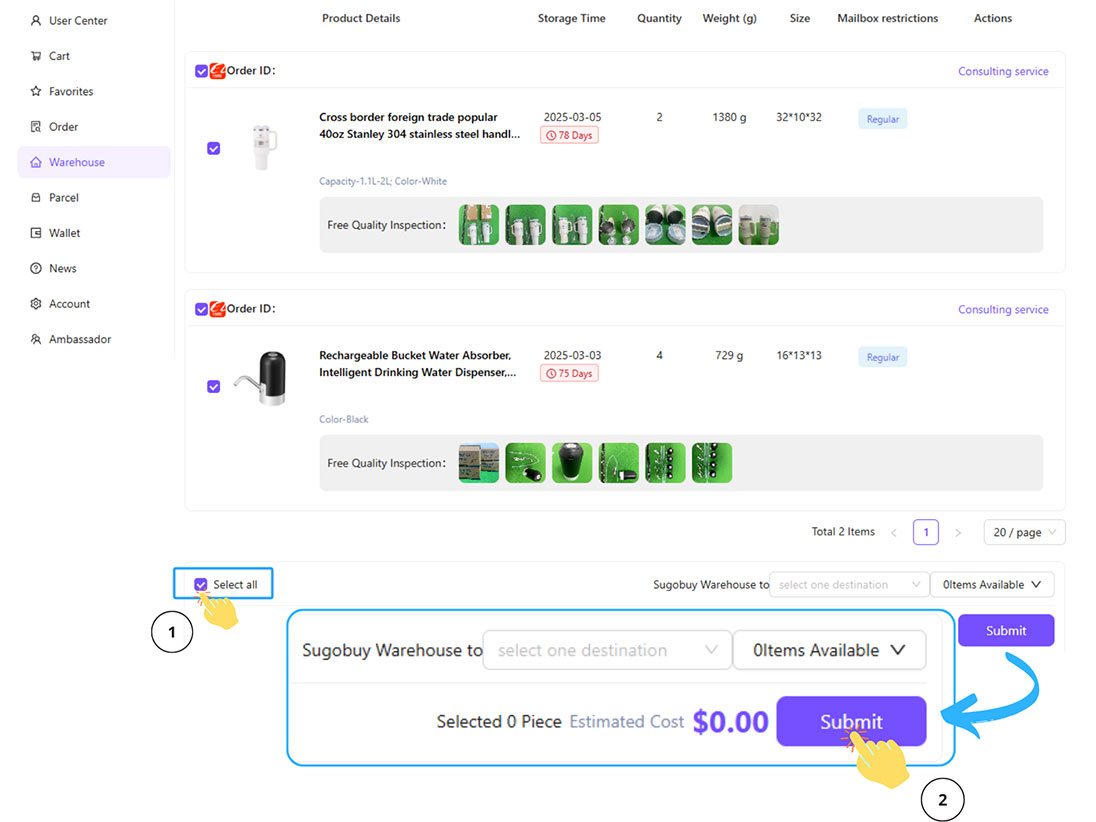
Step 7 · Tick the items and submit a parcel
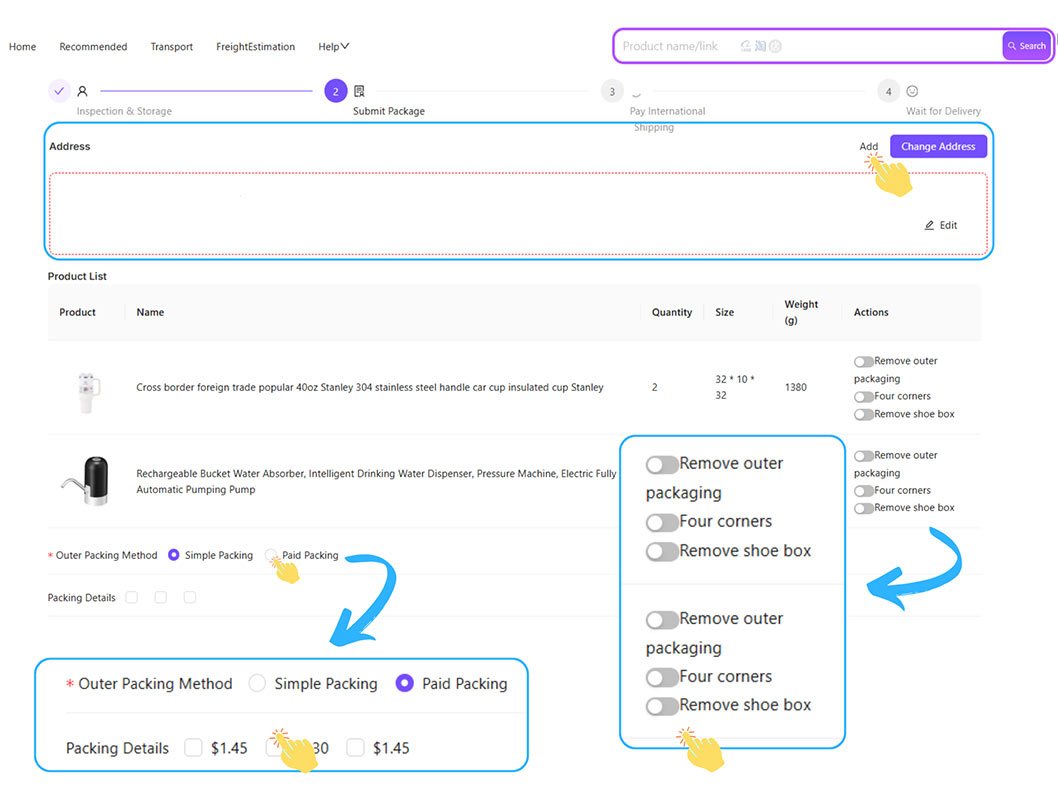
In Warehouse, tick whichever stored items should share a box, then press Submit. The next screen asks for the address, a packing method and per-item options such as removing outer packaging, adding four corner guards or removing the shoe box. Items flagged for separate packing, anything measuring 90 cm or longer on one side, cannot share the box.
Step 8 · Pick a line, add insurance, pay the freight
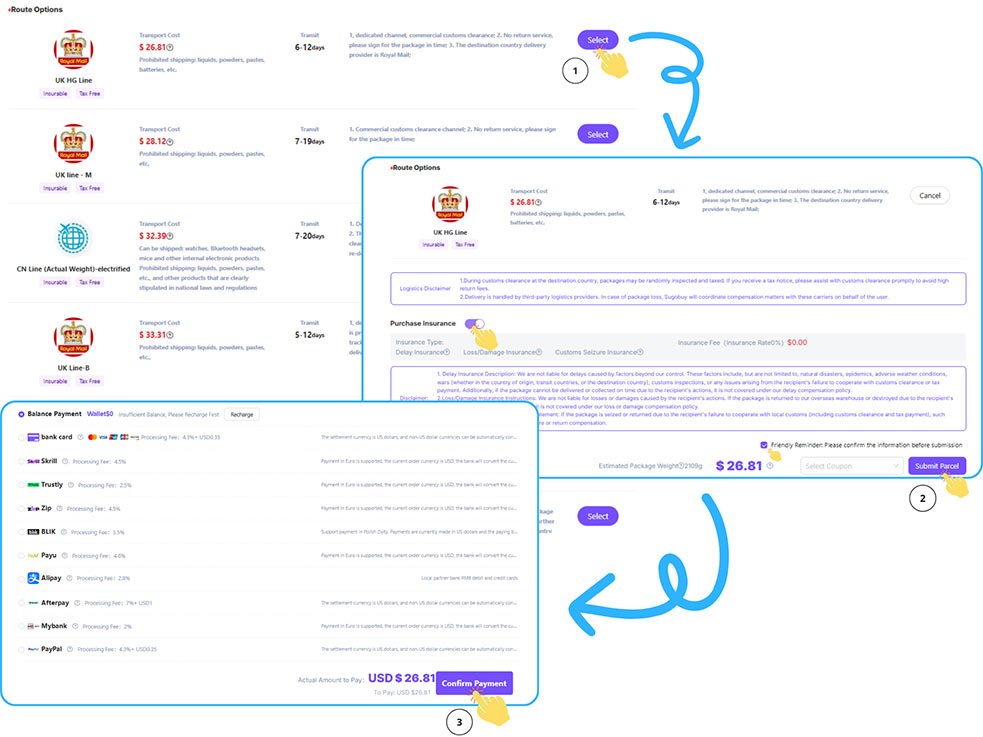
The route list shows each line's price, transit range, what it refuses and whether it is insurable and tax-free. Choose one, decide on insurance, apply a coupon if you have one, and pay. That second charge is only a provisional figure: the warehouse weighs the packed box and refunds any overpayment to your balance.
Step 9 · Packing, weighing and dispatch
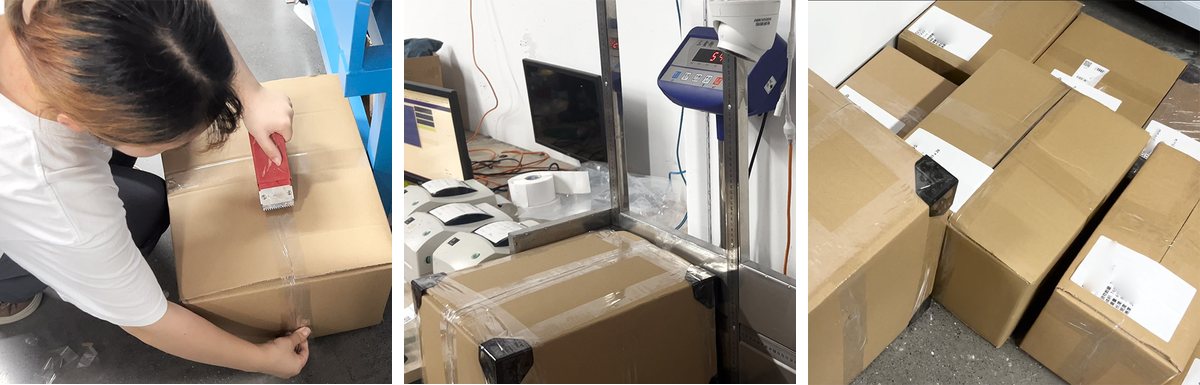
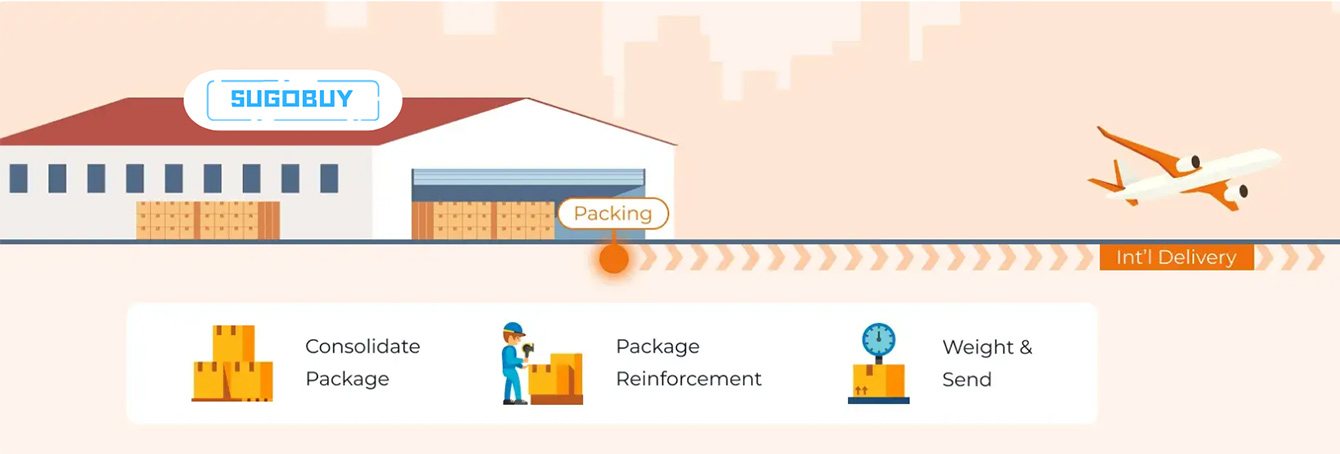
Staff pack the items, reinforce the box and weigh it on a camera-watched scale before it goes to the carrier. You can pay CN¥5 for a parcel photo, one shot before sealing and one after, if you want to see the box.
Step 10 · Tracking page, doorstep check, Confirm Receipt
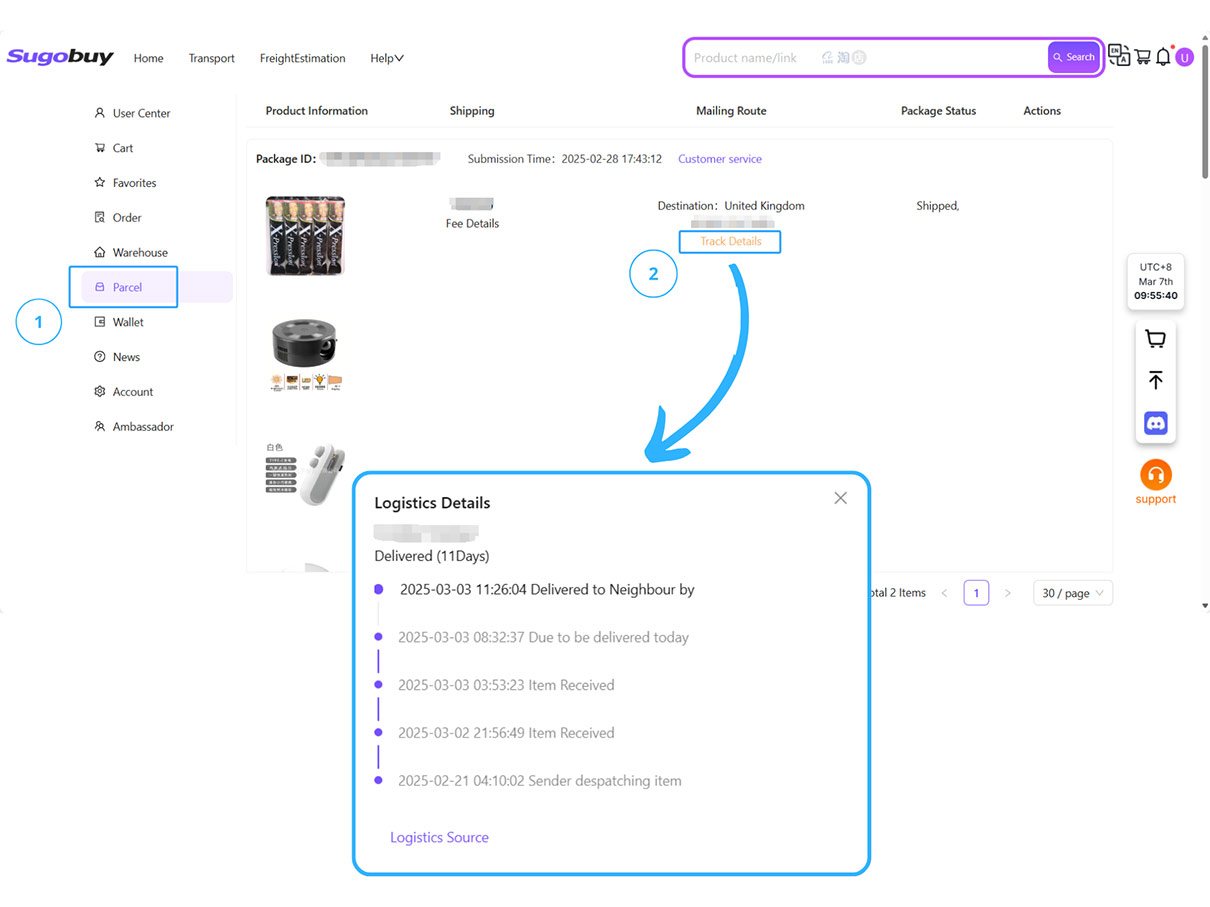
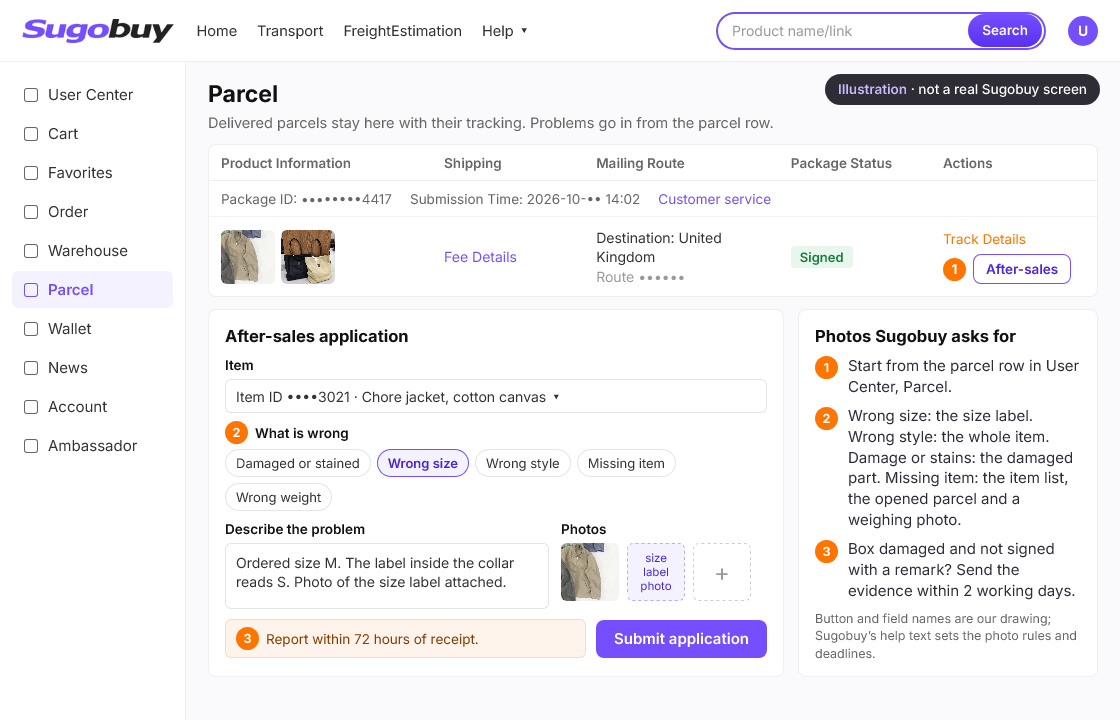
The Parcel page holds the tracking history. Some lines show nothing for about three days after dispatch, so a silent tracking number is normal at first. When the box arrives, check it in front of the courier, sign with a remark if it is damaged, and confirm receipt in User Center. Problems must reach support within 72 hours of receipt.
Ready to see the numbers behind each of these steps? Start with leg 1, ordering and paying.